

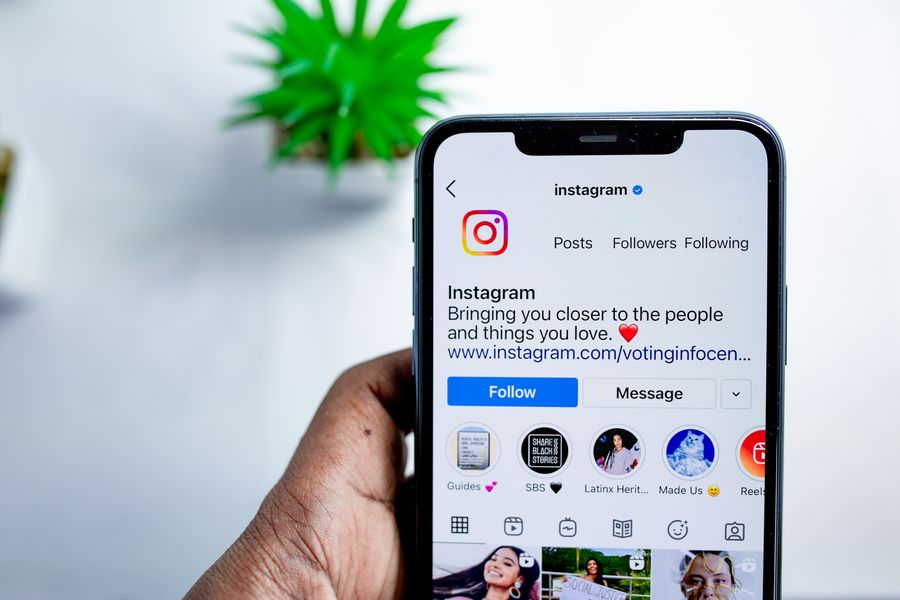
Instagram drafts are useful when you want to prepare a post, Reel, or Story without publishing it immediately. You may save content while waiting for better lighting, approval from a client, the right caption, or a more suitable posting time. The challenge is that drafts are not collected in one universal folder.
Learning how to see drafts in instagram becomes simple once you know where each content type is stored. Post drafts, Reel drafts, and Story drafts appear in different areas of the app. This guide explains where to look, how to manage saved content, and what to do when a draft seems to disappear.
Where Instagram Drafts Are Stored
Instagram stores drafts according to the format you were creating. A photo or carousel draft is found from the regular post creation screen, while a Reel draft sits inside the Reels area. Story drafts are accessed from the Story camera, which often causes confusion for users expecting one shared drafts page.
Drafts are saved locally within the Instagram app rather than being fully accessible from every device. That means a draft created on one phone may not appear when you sign in on another phone. Keeping the same device and app installation is important when managing unpublished content.
Finding Saved Photo and Carousel Drafts
To view a regular post draft, open Instagram and tap the plus icon at the bottom or top of the screen. Select Post, then look for the Drafts option above your recent camera roll images. Tapping Drafts opens the photos, captions, edits, and tags you saved earlier.
If you do not see a Drafts option, Instagram may not have saved the post before you exited. A draft is normally created only after you add an edit, caption, location, tag, or other change. Simply selecting a photo and backing out may not create a reusable draft.
Finding Reel Drafts in the Instagram App
Reel drafts are available from your profile page. Open your profile, tap the Reels tab, and look for a Drafts section near the top of the grid. This section displays unpublished videos that were started and saved within the Reels editor.
You can also tap the plus icon and choose Reel to see whether your saved videos appear. Reel drafts may include trimmed clips, audio selections, text overlays, effects, captions, and cover images. Opening one lets you continue editing or publish it when the content is ready.
Quick Ways to Locate Instagram Drafts
- Open the post creator and choose Post to find photo and carousel drafts.
- Visit your profile and open the Reels tab to find saved Reel drafts.
- Swipe right from the home screen or tap the plus icon, then choose Story for Story drafts.
- Use the same phone where the draft was originally created.
- Update Instagram before assuming a missing draft is an app issue.
Finding Story Drafts Before They Expire
Story drafts are usually located in the Story camera. From the Instagram home screen, swipe right or tap Your Story, then check for a Drafts label near the bottom of the screen. Tap it to review images, videos, text, stickers, and other unfinished Story content.
Unlike post and Reel drafts, Story drafts may not stay available indefinitely. Instagram can remove them after a limited period, often around seven days. If a Story is important, save the image or video to your phone before closing the editor or relying on the draft alone.
Why Story Drafts Can Be Hard to Find
Story drafts are easy to overlook because they do not always appear in the same location as your camera roll. The app may show a small Drafts button only when saved Story content is available. If it is missing, there may be no active Story draft on that device.
Some users accidentally discard a Story draft while leaving the editor. Instagram may show options such as Save Draft, Discard, or Cancel. Choosing Discard permanently removes the unfinished Story, so pause and read the prompt carefully before confirming an action.
Checklist for Accessing a Saved Story
- Open Instagram on the device used to create the Story.
- Swipe right from the home feed to open the Story camera.
- Look near the lower-left area for Drafts.
- Tap the saved item and review it before posting.
- Save valuable media to your phone if you need a permanent backup.
Editing a Draft Before Publishing
Once you find your saved content, take a moment to review it with fresh eyes. Check the caption for clarity, spelling, and tone. Review tags, locations, music choices, and the first seconds of a Reel, since these details can influence engagement and audience response.
A draft is also a good place to adjust your publishing strategy. For example, you may save a product announcement until inventory is ready or hold a Reel until a campaign launch date. Planning content in advance helps maintain consistency without rushing every post.
Updating Captions and Hashtags
Open the draft and tap through to the caption area before publishing. You can rewrite the opening line, add a call to action, remove outdated references, or improve readability with short paragraphs. Keep hashtags relevant to the topic instead of adding large groups of unrelated terms.
If you manage a business account, compare the draft with your current content calendar. A caption that worked last month may no longer match a promotion, event, or audience need. For more planning ideas, see our Instagram content strategy guide.
Changing Covers, Audio, and Visual Details
Reel drafts allow you to revisit visual choices before the video goes live. You can often change the cover image, revise on-screen text, adjust clips, or select different audio. These changes are especially valuable when your original concept no longer fits your brand style.
For photo posts, consider whether the first image will stop people from scrolling. A carousel should begin with its strongest image or clearest message. Drafts give you the time to make practical improvements without the pressure of immediately posting.
Draft Type Comparison
Content Type | Where to Find It | Typical Saved Elements
Post draft | Plus icon, then Post | Photos, caption, tags, location, edits
Reel draft | Profile, then Reels tab | Video clips, music, text, cover, caption
Story draft | Story camera, then Drafts | Images, videos, stickers, text, effects
Managing and Deleting Instagram Drafts
Instagram drafts can build up quickly if you create content often. Review them regularly so old promotions, duplicate videos, and unfinished ideas do not clutter your creation screen. A short weekly review makes it easier to identify posts worth finishing and those that are no longer useful.
To delete a draft, open the relevant Drafts area and look for an Edit, Manage, or Select option. Choose the item you no longer need, then tap Delete or Discard. Confirm the choice only after checking that you have saved any original photos or videos elsewhere.
Keeping Important Draft Assets Safe
A draft should not be your only copy of important content. Save original videos, edited images, caption notes, and campaign assets in your phone gallery or cloud storage. This protects your work if the app crashes, your phone is replaced, or Instagram removes a draft unexpectedly.
For businesses and creators, organize reusable files by campaign or month. Keeping source media outside Instagram makes collaboration easier and reduces last-minute stress. You can then recreate a post quickly if the original draft becomes unavailable.
Preventing Accidental Draft Loss
Save your progress intentionally whenever you leave the creation screen. Instagram usually asks whether you want to save a draft, discard changes, or continue editing. Select Save Draft when you may need the content later, especially after investing time in captions, audio, or visual edits.
Avoid clearing app data or uninstalling Instagram before checking your saved drafts. Local drafts may be removed during these actions because they are tied to the app installation. Back up important media and record captions in a notes app before making major device changes.
Tips for Better Draft Management
- Name campaign folders in your photo library before creating Instagram content.
- Keep captions in a separate notes app for easy backup and reuse.
- Review drafts weekly and delete expired or duplicate ideas.
- Save finished source videos before adding music or effects in Instagram.
- Publish time-sensitive content promptly instead of leaving it in drafts.
- Check drafts before updating, reinstalling, or resetting the app.
Troubleshooting Missing Instagram Drafts
If you cannot find a draft, begin by checking the correct content format. A Reel will not appear in the photo post drafts area, and a Story draft will not appear under your Reels tab. Navigate to the original creation format and look for the Drafts label there.
Next, confirm that you are using the same Instagram account and phone. Switching accounts, logging out, reinstalling the app, or moving to a new device can affect locally saved drafts. Check your gallery and notes app as well, since you may have saved the original media separately.
Checking for App Updates and Account Issues
An outdated app can sometimes display features differently or cause temporary loading problems. Visit your device’s app store and install the latest Instagram update. Restarting the app and your phone may also resolve a temporary display issue without affecting your account content.
If the issue continues, avoid uninstalling Instagram until you have checked every draft location and backed up accessible content. You can report a technical problem through Instagram’s Help section, although support may not be able to restore drafts that were only stored locally.
When a Draft Cannot Be Recovered
Unfortunately, deleted or expired drafts are not always recoverable. This is especially common with Story drafts, app data resets, and uninstalls. Instagram’s servers may not retain every unfinished item because drafts are often stored on the device rather than as published account content.
The best response is to rebuild the post from available assets. Search your camera roll, recently deleted folder, cloud backup, and caption notes. Keeping a simple content archive makes recovery far easier and prevents a temporary app problem from becoming a major setback.
Important Facts About Instagram Drafts
- Drafts are separated by posts, Reels, and Stories.
- They may be stored only on the device where they were created.
- Story drafts can expire after a limited time.
- Uninstalling the app can remove locally stored draft content.
- Saving source media outside Instagram is the safest backup method.
- Drafts are useful for content planning but should not replace file storage.
Using Drafts for a Stronger Posting Routine
Drafts can support a more deliberate Instagram workflow. Instead of creating every post at the last minute, prepare several ideas during a productive session. You can then return to them later, refine the wording, and publish when your audience is most likely to engage.
This approach is helpful for creators, small businesses, and social media teams. A restaurant can save weekend menu posts, a consultant can prepare educational carousels, and a creator can hold several Reels for a busy travel week. Drafts reduce pressure while preserving flexibility.
Planning Content Around Campaign Dates
Before saving a draft, note the intended publishing date and purpose. A product launch post, seasonal offer, and behind-the-scenes Reel may all need different timing. Keeping these details in a content calendar prevents you from publishing an excellent draft after its message is no longer relevant.
You can also review drafts before major holidays, promotions, or brand events. This gives you a chance to adapt older content rather than starting from scratch. A well-organized draft library becomes a source of ideas when your posting schedule feels difficult to maintain.
Balancing Drafts With Spontaneous Content
Not every Instagram post needs extensive planning. Stories and casual Reels often perform well because they feel immediate and personal. Use drafts for content that benefits from editing, approval, or scheduling, while leaving room for timely updates that reflect what is happening now.
The goal is not to fill your account with polished but distant content. It is to create a reliable system that supports your voice. Drafts help you protect good ideas, but your final post should still feel relevant, clear, and authentic to your audience.
Conclusion
Instagram drafts are practical tools for saving work before it is ready to publish, but they only help when you know where each type of content is stored. Regular post drafts appear in the post creator, Reel drafts are found through the Reels area, and Story drafts are accessed through the Story camera.
Review your drafts regularly, back up important photos and videos, and avoid depending on the app as your only storage location. A little organization can prevent lost work, improve your posting schedule, and give you more time to polish captions and visuals. Once you know how to see drafts in instagram, you can turn unfinished ideas into stronger posts without scrambling to recreate them later.
FAQ
Can I see all Instagram drafts in one place?
No. Instagram separates drafts by content type. Photo and carousel drafts appear in the post creator, Reel drafts appear through the Reels section, and Story drafts are available from the Story camera.
Why are my Instagram drafts missing?
Drafts may be missing because you checked the wrong content format, changed devices, logged into another account, uninstalled Instagram, cleared app data, or allowed a temporary Story draft to expire.
Do Instagram drafts transfer to a new phone?
Usually, no. Many drafts are stored locally on the original device and app installation. Save your photos, videos, and captions separately before switching phones to avoid losing unfinished content.
How long do Instagram Story drafts last?
Story drafts may expire after around seven days, although app behavior can change with updates. Save important Story media to your phone if you need to use it later than that period.
Can I delete an Instagram draft without deleting the original photo?
Yes. Deleting a draft generally removes the saved Instagram version, not the original item in your phone gallery. Still, confirm that your source media is saved before deleting the draft.
0 Comments